How to track employee hours without sending a single byte to the cloud
- FaceClock Team
- Guides
- April 15, 2026
Table of Contents
There’s a quiet assumption baked into almost every time-tracking product on the market: that an employee’s clock-in event is a piece of data that should be uploaded somewhere. Usually to the vendor’s cloud. Sometimes mirrored across three regions for “redundancy.” Often retained indefinitely under a vague “as long as needed for the service” clause.
That assumption isn’t always wrong. But for a lot of small operations - a dental practice, a print shop, a community theater, a microbrewery - it’s overkill at best and genuinely problematic at worst. So this is a guide to the alternative: how to actually run a workplace time-tracking system that doesn’t ship anything off the device.
I’ll cover the boring legal-ish parts first, then the practical setup, then the gotchas.
Why bother avoiding the cloud at all?
Three reasons people give me, more or less in this order.
Compliance. If you’re handling biometric data - and a face is biometric data under most modern laws - sending it to a third party turns you into a data controller with a long list of obligations. The simplest way to avoid those obligations is to not have the data leave the device in the first place. Under GDPR Article 9, BIPA, the new Texas CUBI updates, and the CCPA’s biometric clause, “we never transmit it” is a legitimate, legible answer.
Cost. SaaS time tracking typically runs $3-$8 per user per month. For a 15-person team that’s $540-$1,440 a year, indefinitely. The economics flip somewhere around 30+ employees, but for most small operations the math is “why am I paying a recurring fee to someone for the privilege of recording when my staff arrived.”
Trust. Employees don’t always know what to make of the request to upload their face to a vendor’s server. Some of them have heard about the Illinois lawsuits. Some of them just don’t like it. Removing the upload pipeline removes the conversation.
You don’t need all three reasons. One is usually enough.
The components of a non-cloud system
A complete offline time-tracking setup has five parts:
- A clock device - a tablet, phone, or kiosk
- Identity verification - face, fingerprint, PIN, RFID, or just a name list
- Local storage - somewhere the records actually live
- Reporting / export - usually CSV
- A backup story
Of those, point 5 is the one most people skip. We’ll come back to it.
The clock device
For most setups this is just an Android tablet mounted near the entrance. The cheap end of the range - a Samsung Tab A8, a Lenovo Tab M9, refurbished - runs about $100-$150 and lasts years. Power it via the wall and never worry about the battery.
A few practical things:
- Mount it at chest-to-shoulder height, not eye level. People look down at it more naturally.
- Don’t put it where direct sunlight hits the screen at any point in the day.
- Get a sturdy mount. The flimsy ones flex when people press the screen.
Identity verification
This is where you make a decision: how do people identify themselves to the clock?
PIN codes. The simplest. Each person has a 4-digit code. Cheap to set up. Shareable, which is the whole problem - “buddy punching” is the technical term.
Fingerprints. Reliable when they work. Annoying in cold weather, with gloves, with cuts on hands, in commercial kitchens.
RFID cards or fobs. Genuinely good if your team already carries badges. Lost cards are the failure mode.
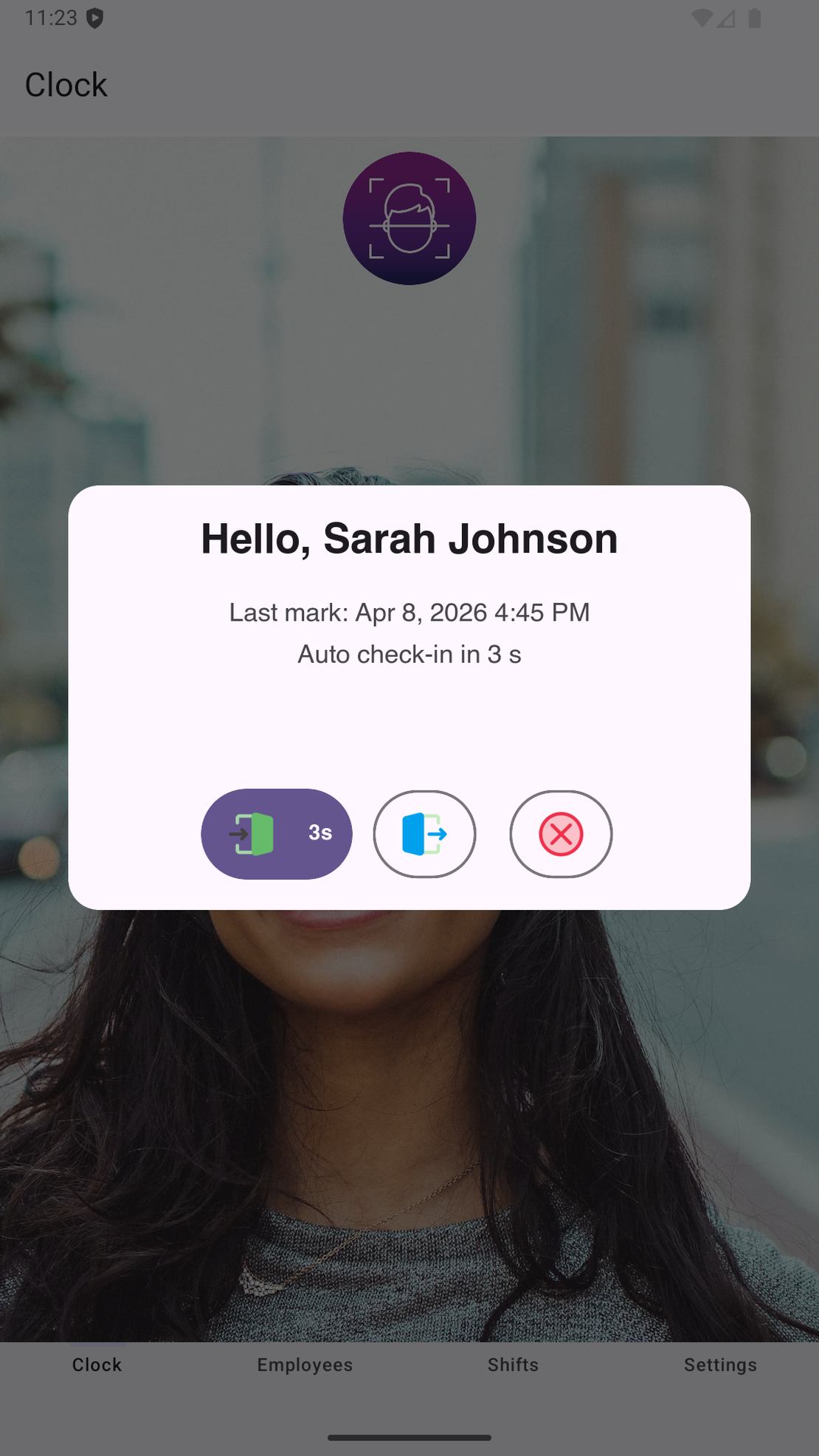
Facial recognition. Hands-free, fast, and impossible to share - but it’s biometric data, with all the policy weight that brings. Done well (on-device only), it sidesteps the policy weight while keeping the convenience.
I’m biased, but face recognition done locally is the best default for most teams. The legal complications people imagine usually evaporate once you can show that no biometric data ever leaves the device.
Local storage
If you’re using a phone or tablet, this is just an SQLite file in the app’s private directory, plus an images folder for clock-in photos. The whole database for a 15-person team after six months runs maybe 30-60 MB. It’s not a scaling problem.
The thing to verify: does the app actually persist clock-ins to disk immediately, or does it buffer them in memory and write later? Buffering is what kills you when the device crashes or someone unplugs it. A well-designed offline app writes to disk before it shows the “you’re clocked in” confirmation.
Reporting
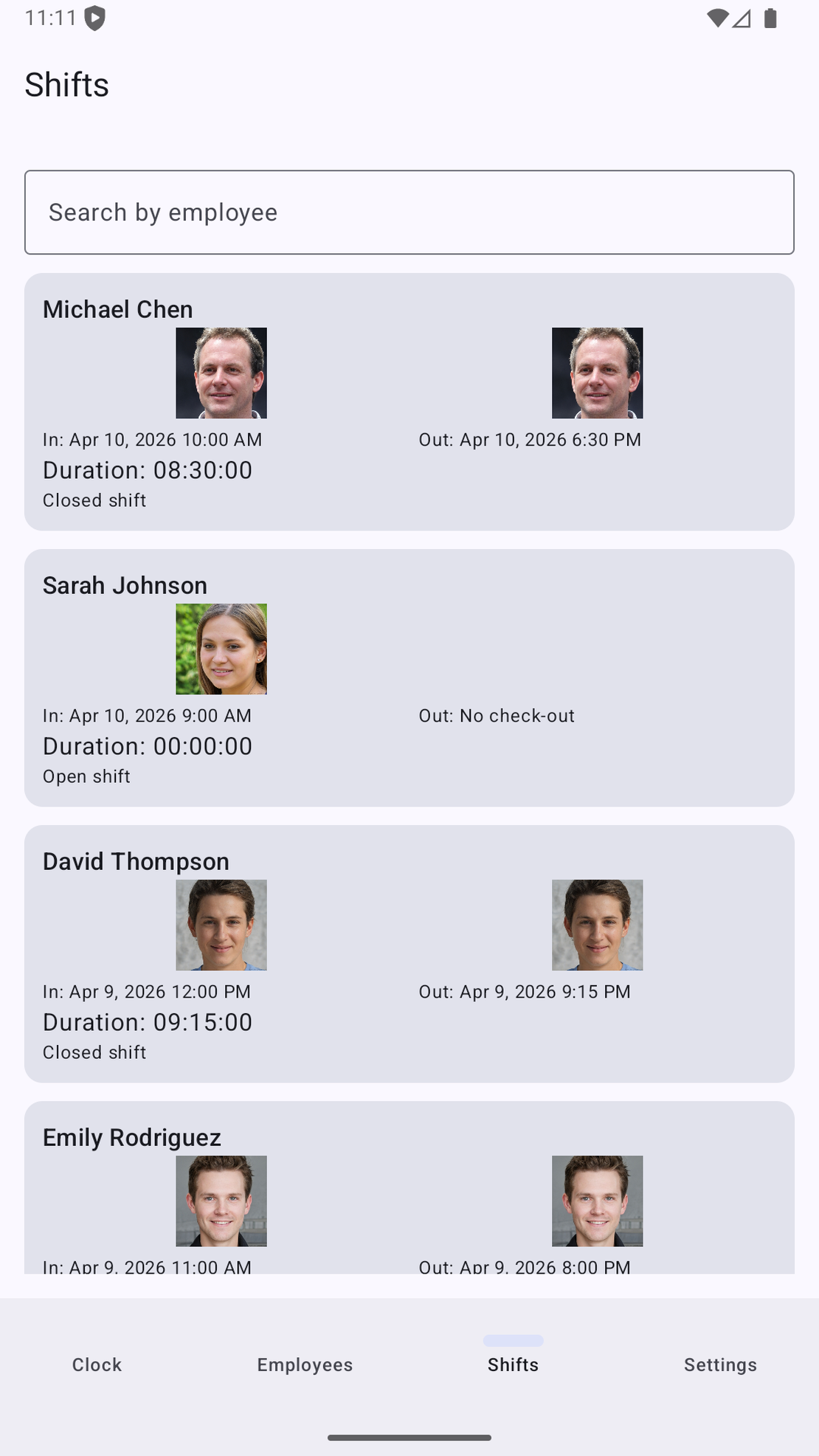
For 95% of small operations, what you need is a CSV. Each row is one shift, with columns for employee name, start time, end time, duration, optional notes. You drop the CSV into a shared folder. Your bookkeeper opens it Monday morning. Done.
Anything fancier than CSV usually means you’re integrating with a payroll system, in which case you have a real engineering project on your hands and the on-device approach is probably the wrong shape. We’ll come back to that.
Backup
This is the part that gets skipped. Here’s the rule: if your records only exist on the wall-mounted tablet, your records don’t exist. Tablets crack. Tablets get unplugged by cleaners. Tablets occasionally just brick themselves on a Tuesday morning.
Three reasonable backup approaches:
- Weekly CSV export to a shared drive. Simplest. The bookkeeper saves a copy every Monday. If the tablet dies, you’ve lost up to a week.
- Daily automatic CSV export to a cloud folder via Android automation (Tasker, Macrodroid). A bit more setup. The export contains aggregate shift records - employee name, times - which is fine to back up; biometric data isn’t in the CSV.
- A second device that periodically receives a backup over local network. More elaborate. Worth it for larger teams.
Note: backing up the aggregate shift data (CSVs) is fine. Backing up the biometric embeddings generally is not - that defeats the whole point of keeping them local.
A working example, briefly
Here’s the setup that’s running at a 9-person dental practice I helped set up last spring:
- Samsung Tab A8 mounted in the staff entry corridor
- FaceClock installed; office manager registered everyone in about ten minutes one Monday morning
- Maximum shift set to 12 hours; the practice rarely runs that long, but it catches the case where someone clocks in for a Saturday emergency and forgets to clock out
- Auto-cleanup of old shifts after 90 days (the default)
- Weekly automatic CSV export running via Android’s Files app, saved to a Google Drive folder shared with the bookkeeper
- A printed sheet next to the tablet with manual fallback instructions, in case of weirdness - written name + time + initials. Never been used in 11 months.
Total cost: about $130 for the tablet, one Sunday afternoon of setup, and zero recurring fees.
Calculating overtime when you only have CSVs
Here’s where people sometimes panic: “but how do I calculate overtime without an admin portal?” The answer is - somewhat boringly - you do it in the spreadsheet, the same way you would have ten years ago. A typical formula looks like:
weekly_hours = SUMIF(employee_id, [name], duration_hours)
overtime_hours = MAX(0, weekly_hours - 40)
For most countries’ overtime rules, that’s all you need. The complications come when overtime is calculated daily (some Canadian provinces, some EU countries with collective agreements) - but those rules are encoded in the spreadsheet, not in the time-tracking app. The app’s job is to give you a clean shift log. Calculation belongs in payroll.
When this falls apart
I want to be honest about scale.
Multi-location operations. If you have three cafes and want the head office to see shifts in real time, a per-location offline kiosk is the wrong shape. You’ll end up emailing CSVs around and wishing you’d paid for the multi-location SaaS. The break-even is somewhere around three locations.
Real-time payroll automation. If your scheduling system needs to know - right now - that someone clocked in late, an offline-first app can’t tell it that. You’d need API hooks. Most offline apps don’t expose them, by design.
More than ~50 staff per device. Face recognition gets slower as the registered set grows. A 50-person registered set is fine on modern hardware. A 200-person set isn’t, on cheap tablets.
Multi-shift handoffs in 24/7 operations. Hospitals, factories, anywhere with three shifts a day. Possible, but the manual edit workflow becomes a higher-volume thing, and you’ll want the cloud’s centralized visibility.
If you fall outside those boundaries, the cloud approach is probably right for you. If you’re inside them - most small operations are - the offline approach saves money, sidesteps biometric-data complications, and produces records that don’t depend on someone else’s server staying online.
Closing thought
The default in the SaaS era is to assume that any piece of business data should live in someone’s cloud. For a lot of categories that’s correct. But timesheets are weirdly suited to not being in the cloud: they’re personal data, subject to retention rules, low-volume, and don’t actually benefit much from being centrally aggregated for a single-location small business.
Sometimes the old-fashioned answer is also the modern one. A device by the door. A CSV at the end of the week. Records that exist exactly where you can see them.
That’s most of what running a small team’s time tracking actually needs.